Financial Analytics Programme — 10 Weeks

Become a
Data-Driven
Finance Analyst

Exclusively designed for Finance and Accounting Professionals to meet today's industry demands — Excel automation, Power BI dashboards and data-driven analysis.

Designed by Ex-IBMer
Real World Finance Scenarios
19 Years MNC Experience
1,500+ Professionals Trained
Designed for
Finance Analysts
FP&A Analysts
R2R Analysts
Accounting Professionals
O2C & Business Operations
MIS Reporting Roles
Join Live Batch — ₹2,499 → Self-Paced Access — ₹999
One-time payment · Lifetime access
7-Day Money-Back Guarantee — Zero risk
Watch Before You Enrol

Watch the Video — Course Overview

A walkthrough of what this 12-day programme covers and how it is taught.

AFAP Careers — 12-Day Live Programme Preview
Programme Preview
AFAP Careers — 12-Day Live Training
Your Learning Path

Next 14 Weeks — Are You Ready to Start?

Start building the skills that make you stand out. Become a data-driven Finance Analyst.
I will help you stand out with premium skills and the confidence to solve complex problems.

Here is your journey — from basics to boardroom-ready.

Week 1 01
You become comfortable working with Excel. You are ready to work with data.
  • Sort and filter data
  • Build validations to prevent data errors
  • Remove duplicates and clean data
  • Format data professionally
Week 2 02
You start using Text, Date and Number Functions. You become comfortable combining functions.
  • Use Text functions to extract and transform data
  • Use Date functions for working days, months, quarters
  • Use Number functions for budget and cost calculations
  • Combine functions to solve complex problems
Week 3 03
You use XLOOKUP, VLOOKUP and Index & Match with multiple criteria to solve complex problems. You build quick scenarios using IFS and Nested IFs confidently.
  • XLOOKUP and VLOOKUP with multiple criteria and wildcards
  • IFS, Nested IFs, Nested IF with AND and OR
  • Confidently build formulas for real finance scenarios
Week 4 04
You learn to summarize data using basic to advanced Pivot Tables. You build MIS reports like an MNC analyst.
  • Analyse reporting requirements and define KPIs
  • Consolidate data, structure your report, perform calculations
  • Use SUMIFs and build interactive dropdown-driven MIS reports
  • Format and present reports to clients and stakeholders
Week 5 05
You learn how to approach dashboards like an experienced Finance Analyst — from requirements to final delivery.
  • Analyse requirements, structure your dashboard, build a wireframe and storyboard
  • Choose the right visuals to tell the story
  • Format and transform the dashboard — presentable to clients
Week 6 06
You solve a more complex dashboard problem — each manager gets their own user ID and password with personalised views.
  • Build a customised access-controlled Excel dashboard
  • Display views mapped to each manager's login
  • Use FILTER and TOP N functions for problem-solving from real client requirements
Week 7 07
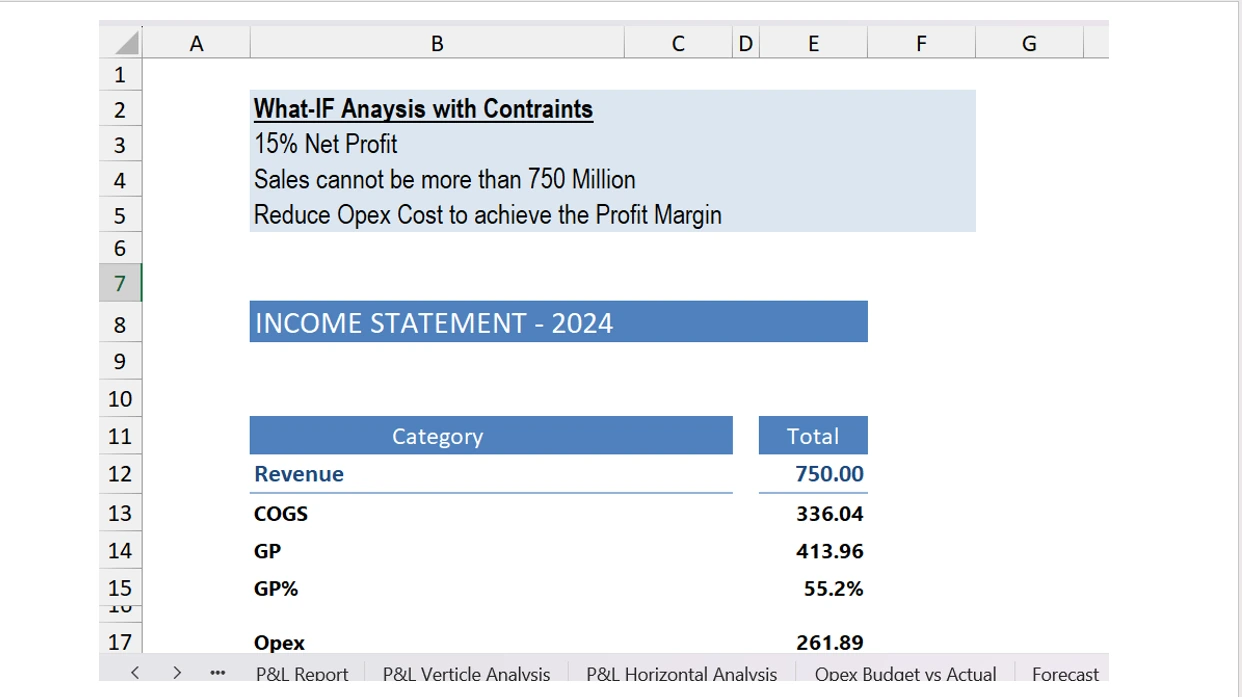
You start working with GL data. You build a P&L, perform vertical and horizontal analysis and run scenario models.
  • Build P&L — vertical, horizontal analysis and trend view
  • Build a dynamic base case, best case and worst case forecast
  • Use WhatIf and Sensitivity tools to test scenarios
  • Use Solver for complex scenario testing with multiple constraints
Week 8 08
You learn how the Excel BI tools work — how to use Excel for millions of rows of data and the full BI framework.
  • Understand the ETL process — Extract, Transform, Load
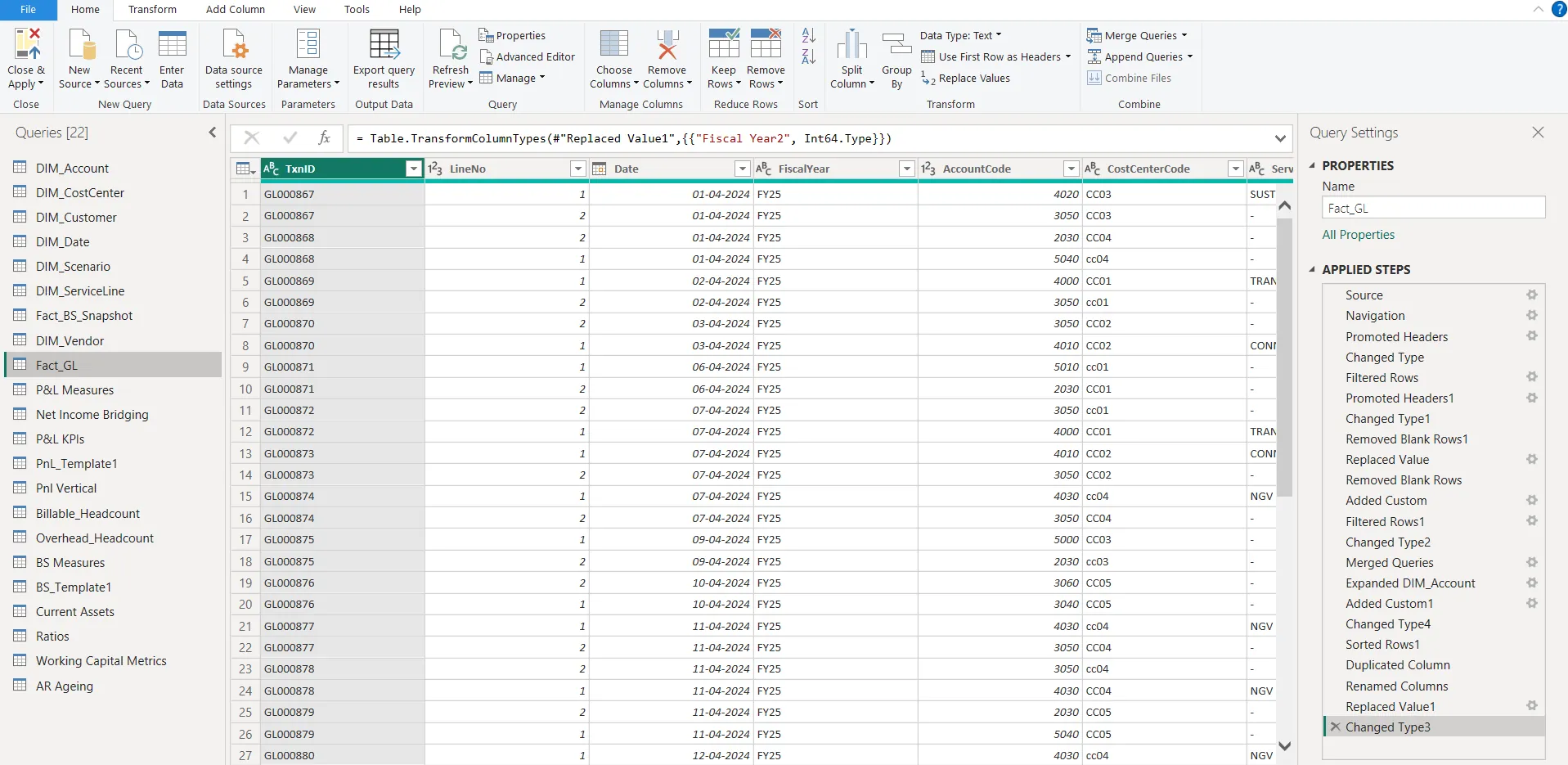
  • Use Power Query to extract data from different sources
  • Perform cleaning and transformation on data
  • Optimise Query steps, append, merge data and manage load options
Week 9 09
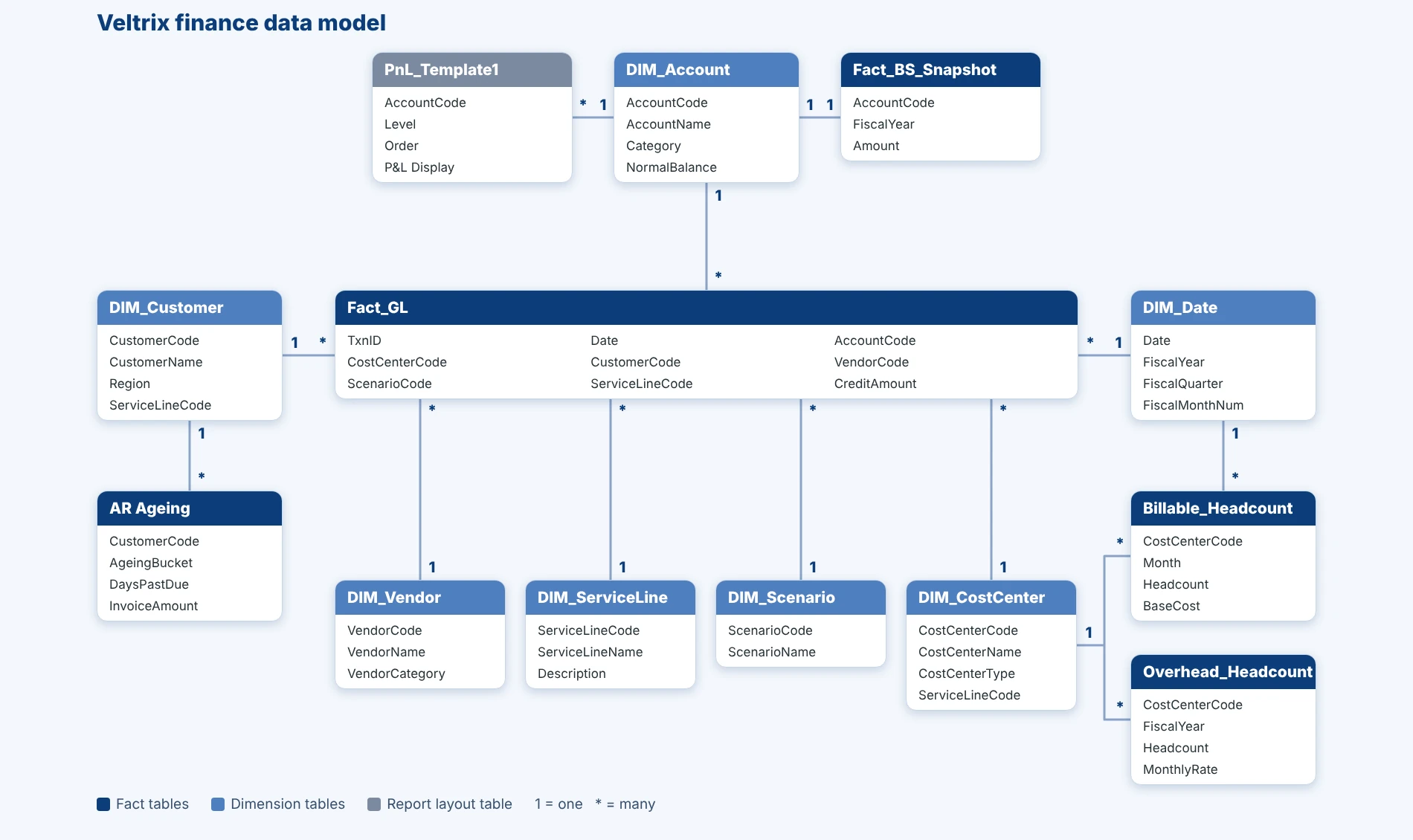
You learn how to build a Data Model with a Finance dataset — the foundation for automated reporting.
  • Understand Fact vs Dimension tables and how to organise them
  • How to connect, edit and delete tables — cardinality and filter direction
  • Schemas and relationships — Star vs Snowflake
Week 10 10
You start building reports — commercial summaries showing payments pending, sales, volume and % performance.
  • Number of payments pending, sales, average sales, volume, % performance
  • Build more complex summaries using Iterative functions — Sales excluding GST
  • Understand Calculated Columns vs Measures — when to use each
Week 11 11
You start understanding DAX — the evaluation context, filter context and row context. You build a full P&L from scratch.
  • Calculate Revenue, COGS, Opening Stock using DATEADD
  • Calculate EBITDA, EBIT, PBT and PAT
  • Build a complete automated P&L with margin ratios
Weeks 12 – 13 12
You start performing the analysis — understanding why the EBITDA has dropped. You fully automate your analysis.
  • Price Volume Mix analysis — impact from price change and volume change
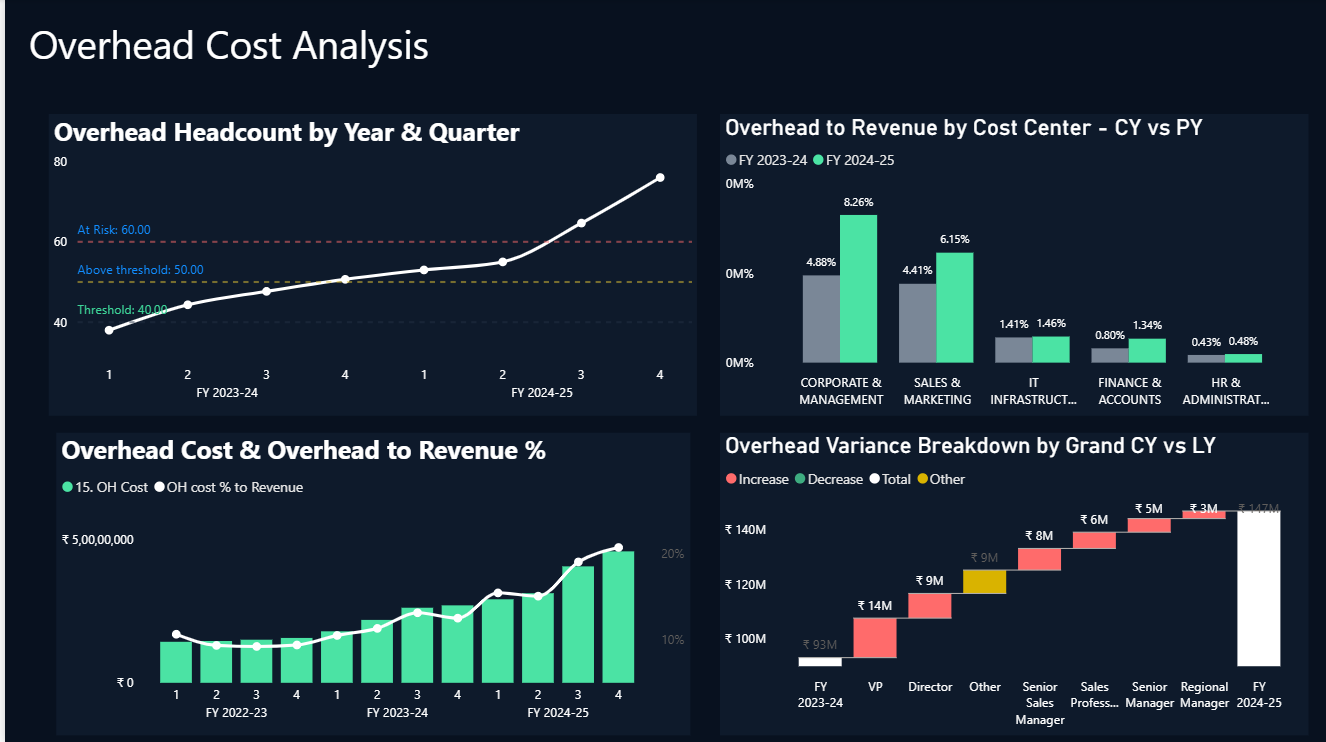
  • Opex to revenue, monthly Opex trend, Opex by categories, Budget vs Actual variance
  • Deep dive to analyse EBITDA unfavourable variance using different dimensions
  • Fully automate your analysis — make your reports dynamic for slicing and dicing
Week 14 14
You learn how to visualise your data using Power BI — fully automated, captivating and interactive reports.
  • Power BI basics — Power Query, DAX and Data Modelling refresher
  • Charting options — how to use Power BI to analyse variances
  • Make reports interactive — go beyond basic Excel charts
  • Use AI tools like Decomposition Tree to break down and analyse root cause
Week 15 15
Start upgrading your resume with advanced skills and reporting projects.
  • Add 9+ live finance projects to your resume
  • Excel and Power BI Certification — add to LinkedIn instantly
  • Showcase advanced skills to recruiters and hiring managers
Week 16 16
Complete the interview checklist. Position yourself confidently for high-value analyst roles.
  • Placement Prep Pack — resume template and interview checklist
  • Position yourself for FP&A, MIS and Analytics roles at MNCs
  • Walk into interviews with a strong portfolio and real projects
🏆
Build Automated Reports at Work. Showcase and Impress with Advanced Skills.
Make your reports error-free, faster and more dynamic. Become the go-to Financial Analytics Expert for your clients, management and team — with sharper technical and analytical skills for high-value analyst roles.
Start Your Journey →
Built During the Programme

Built from Experience.

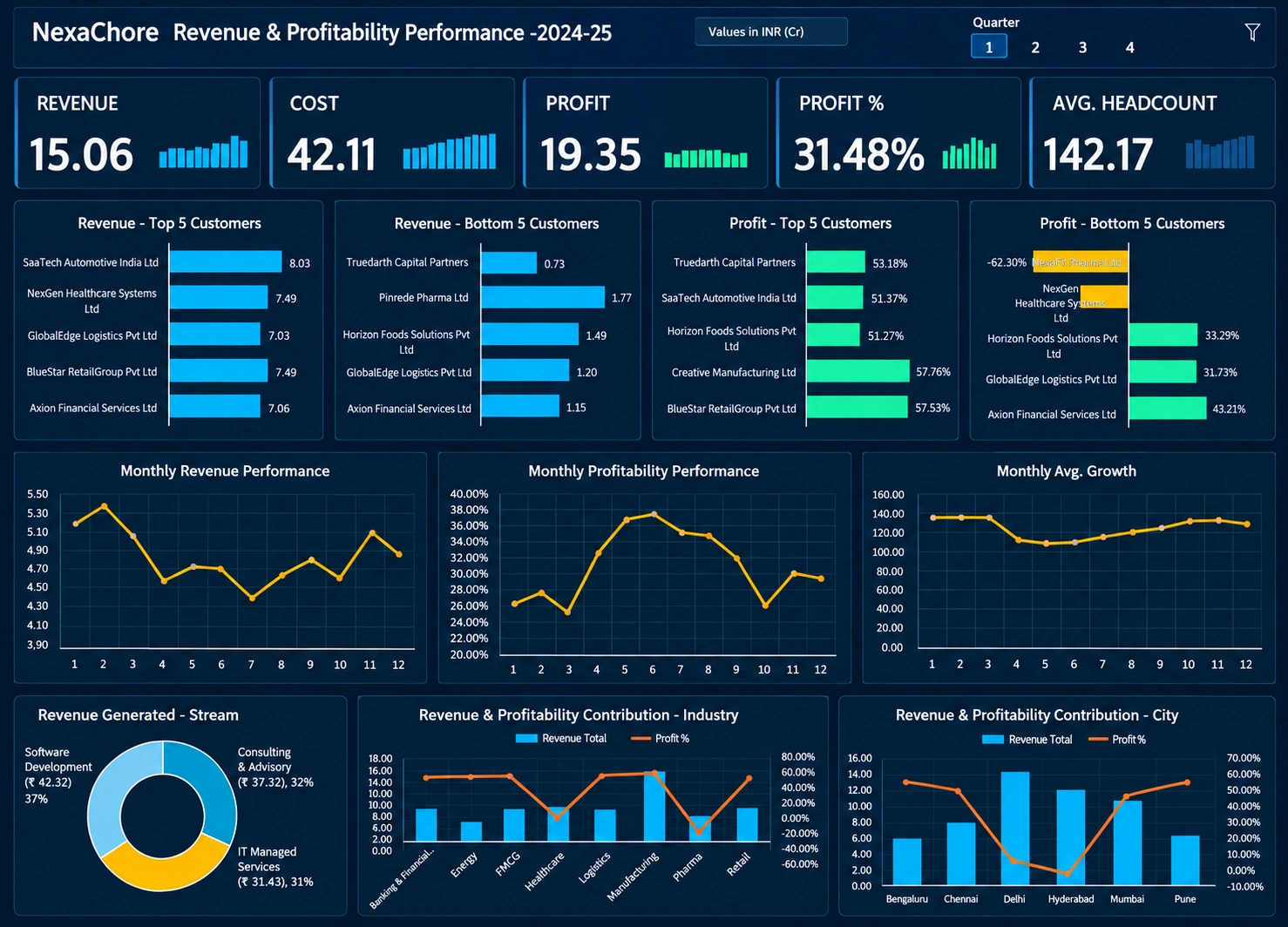
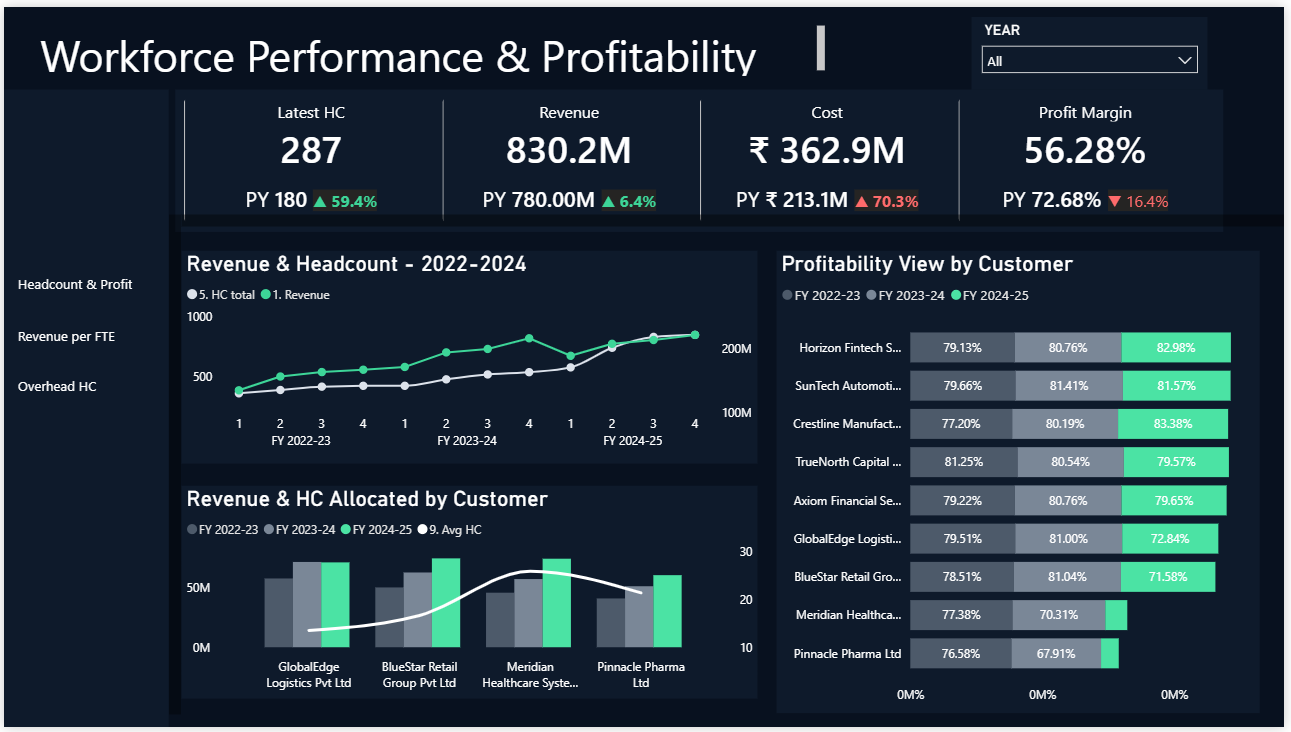
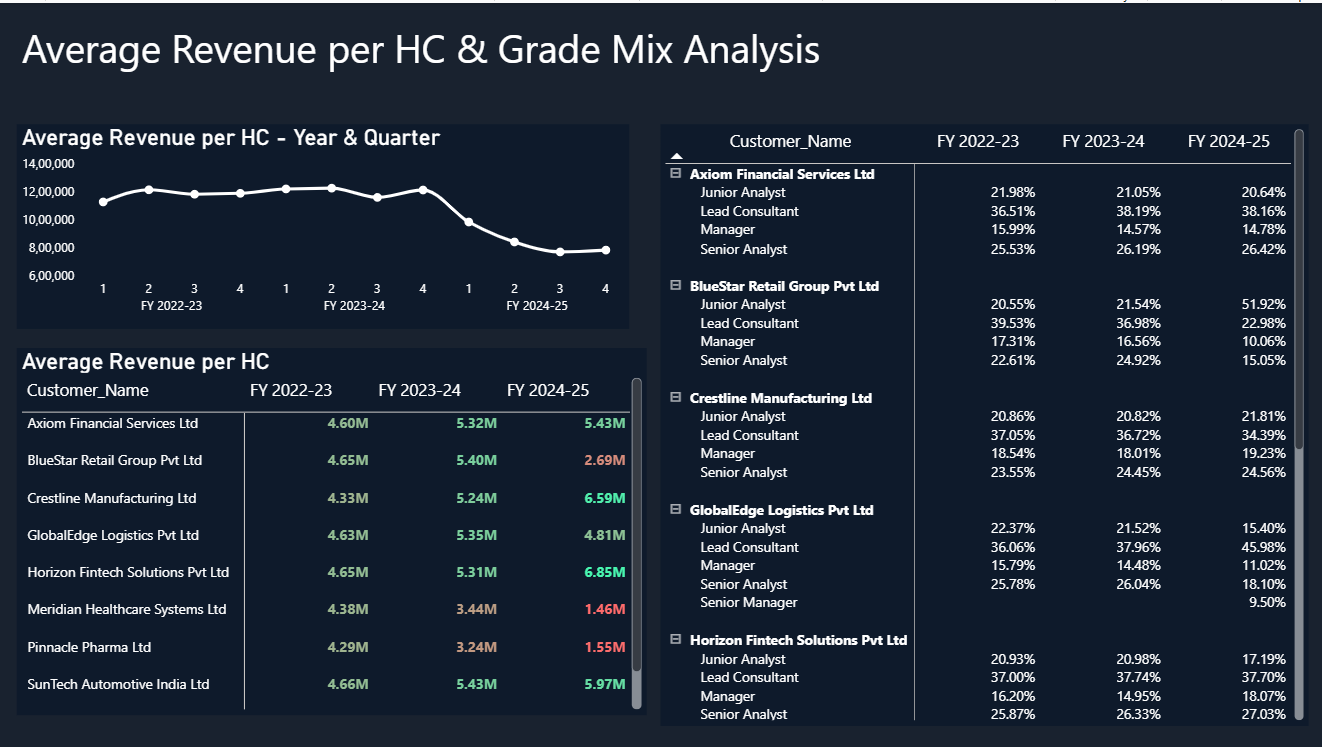
Every dashboard, report and model you see here was built from real industry problem solving experience — using real MNC finance data.

Power BI Budget vs Actual Dashboard
Power BI — Budget vs Actual Variance Dashboard
Power BI
Excel MIS Report
Excel MIS Reporting Automation
Excel
Financial Analysis Dashboard
Excel
Finance Data Models
Finance Data Models — Power Query & Data Modelling
Data Model
FP&A Automation Report
FP&A Reporting Automation
FP&A
Variance Analysis Report
Variance Analysis & Trend Reporting
Analytics
P&L Automation
P&L Automation — Dynamic Scenarios
FP&A
MNC Finance Dashboard
MNC-Grade Finance Dashboard
Dashboard
Premium Financial Analytics Course — Enroll Now
Join Live Batch — ₹2,499 →
Don't Miss This

Offer Price Ends in 5 Days - Here Is Everything You Get

Full breakdown of every module and feature inside each plan.

Plan 01
Self-Paced Access
999
₹1,999 One-time · Lifetime access ✓ Save ₹1,000 — 50% off
Excel — 5 Levels 7 modules
Excel Basics — Foundation before advancing
Excel Contract Financial Analysis
MIS Reporting — Budget vs Actual
Headcount Dashboard — MNC standard
Access-Controlled Dashboard
P&L Reporting — Vertical, Horizontal & Trend
Forecast Scenarios & Sensitivity Tools
FP&A Automation 4 modules
FP&A Reporting Automation — End-to-end
P&L Automation & Dynamic Forecast Scenarios
Price Volume Analysis Automation
Variance Analysis Automation & Trend Analysis
Power BI 4 modules
Power BI Variance Dashboards — CFO-ready
Complete Power BI — Query, Modelling, DAX
Power BI for Finance, Sales & Variance
Complex Real-World MNC Datasets
Included 4 items
40+ Hours of Course Content
9+ Reporting Projects for your resume
Lifetime Access — all future updates free
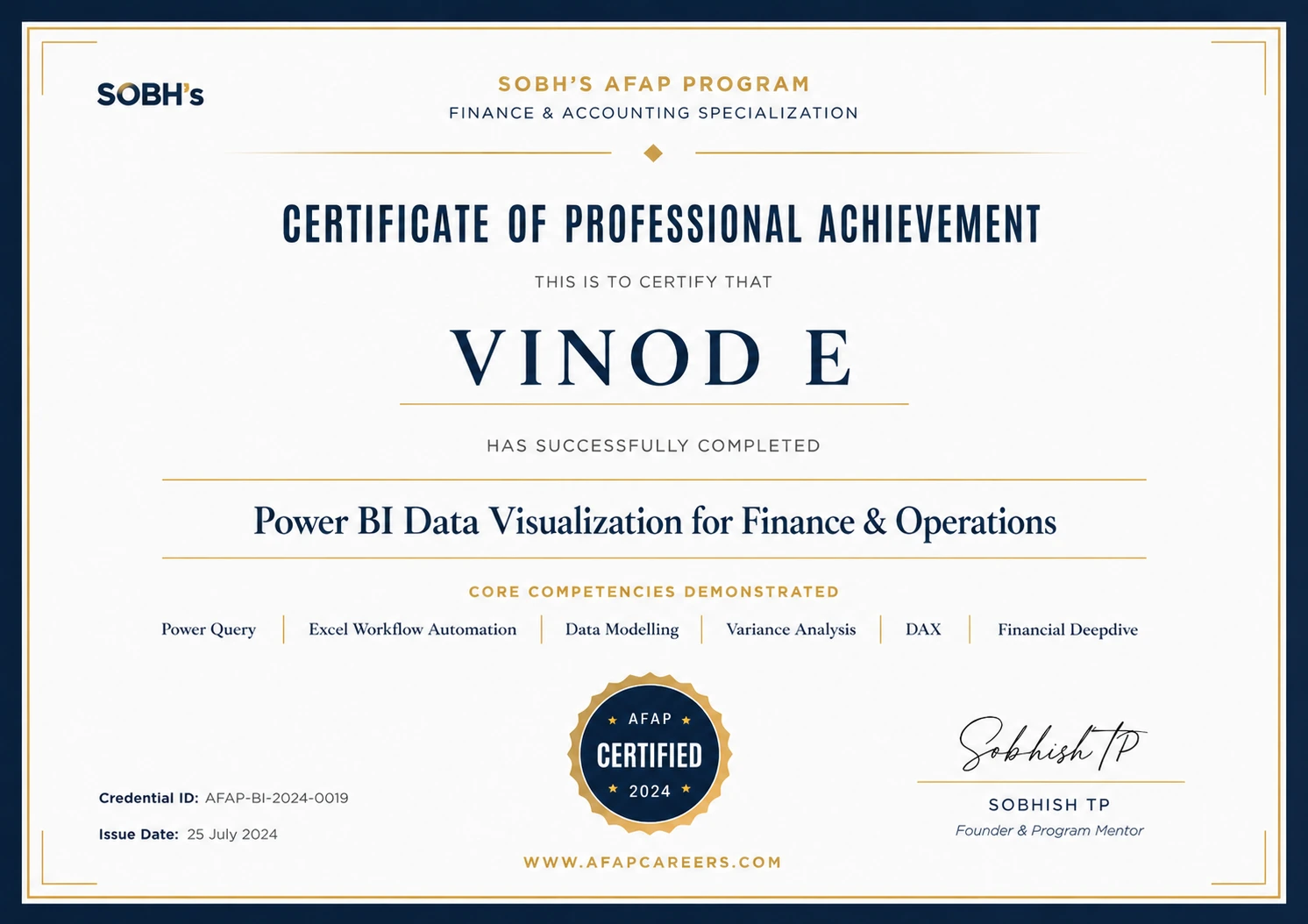
Excel & Power BI Certification
Not Included
12 Days Live Training
Interactive Q&A every session
Placement Prep Pack
Exclusive Premium WhatsApp Group
Get Instant Access — ₹999 →
One-time · No hidden fees
⭐ Most Popular
Plan 02
Self-Paced + Live Training
2,499
One-time · Everything included ✓ 7-Day Money-Back Guarantee
Includes everything in Self-Paced — all 19 features above, plus:
🔥 Live Batch — April 20th 7 items
12 Days Live — Automation + Power BI sessions
8:30–9:30 PM IST · Mon to Thu · Recordings available
Interactive Q&A — real-time doubt clearing
Placement Prep Pack — resume + interview checklist
Exclusive Premium WhatsApp Group
Fast-Track Implementation — apply skills same week
Special Discounts on future courses
Join April 20th Batch — ₹2,499 →
One-time · All live sessions included
Both plans come with a 7-Day Money-Back Guarantee — Zero risk. Secure payment via Razorpay.
Taught by Sobhish — Ex-IBM
19 Years MNC Finance Experience
1,500+ Professionals Trained
Detailed Course Syllabus — Sobhish Analytics
Comprehensive Curriculum

Detailed Course Content
Expand & View Chapters

Excel Introduction
  • Excel Basics — Introduction
  • Excel User Interface
  • Entering Data into Excel
  • Raw Data Excel Introduction — Download this
Formatting in Excel
  • Formatting Rows and Columns
  • Control & Shift Keys — Important Shortcut Keys
  • Text Formatting
  • Formatting Numbers
  • Formatting Dates
  • Formatting Others
Working with Data in Excel
  • Filtering Data in Excel
  • Sorting Data
  • Find & Replace
  • Copy and Paste Data
  • Paste Special Function
  • Clean, Transform Group
  • Text to Column
  • Flash Fill
  • Remove Duplicates
  • Data Validation
  • Group and Subtotal Data
  • Consolidate Data
  • Insert Objects
Formula & Functions Introduction
  • Functions & Formulas
  • Final Review & Others
Course Setup
  • Course Introduction
  • Before you Start
  • Guidelines
  • Project Walk-through
  • Project Files
Text Functions Challenges
  • 1. Join Text — Create a full name column
  • 2. Proper — Change Name to Proper
  • 3. Combine Functions
  • 4. Trim — Remove Extra Space
  • 5. Right Function — Extract Location ID
  • 6. Left Function — Extract Employee ID
  • 7. Dynamic Extraction Len & Left
  • 8. Flash Fill
Date Function Challenges
  • 1. DATEDIF - DAYS — Calculate Average Days
  • 2. DATEDIF - MONTH — Calculate Months
  • 3. DATEDIF - YEAR — Employees Less than 1 year old
  • 4. Network Days — Calculate Total Working Days
  • 5. YEAR Function — Employees Joined in 2023
  • 6. MONTH — Employees joined in March '23
  • 7. Quarter — Employees Joined in Q1 '23
  • 8. TEXT — Any relieving dates on Sat or Sunday
  • 9. How many people relieved in 2022
  • 10. MONTH — Number of people relieved in Nov '22
  • 11. Quarter — Number of people relieved in Q1 '23
Number Function Challenges
  • 1. Number Functions — Employee Working Days
  • 2. Number Functions — Labour Budget Summary
  • 3. Number Functions — Conveyance Actuals
Lookup Functions Challenges
  • 1. Lookup Function Intro
  • Problem #1 — Which employee has the highest travel amount
  • Problem #3 — Reasons for Vlookup Errors & How to fix them
  • Problem #4 — Replace #NA Error with Text Value Not found
  • Problem #5 — What is the total Emp Count for Bangalore
  • Problem #6 — What is the employee count for Manager Jayan Tharakan
  • Problem #7 — How to use XLOOKUP to populate manager name
  • Problem #8 — Populate Experience Category
  • Problem #9 — Populate Employee Level
  • Problem #10 — Populate Weekday / Weekend based on Day
  • Problem #11 — How to use Xlookup with Wildcard
  • Problem #12 — How many people are under Leader Deepesh Jain
  • Problem #13 — What is the average Fresher Cost Rate
  • Problem #14 — How to avoid creating a Temporary Lookup column
  • Problem #15 — How to use Xlookup to populate Cost Rate
  • Problem #16 — How to use Xlookup with multiple criterias
  • Problem #17 — What is the Travel cost for Project PID002
  • Problem #18 — What is the total Labour Plan cost for PID003
  • Problem #19 — Calculate Monthly Labour Plan Cost
Logical Function Challenges
  • Logical Functions Introduction
  • Problem #1 — Categorize Baselocation vs Others
  • Problem #2 — Category Travel as Approval Required and Not required
  • Problem #3 — Calculate 2H forecast scenario 1
  • Problem #4 — Populate Weekend vs Weekday in Travel
  • Problem #5 — Forecast Scenario 2
  • Problem #6 — Forecast Scenario 3
  • Problem #7 — What is the standard vs premium employee count
  • Problem #8 — 2H Forecast scenario 4
  • Problem #9 — How many Level 2 approval travel charges are there
  • Problem #10 — Forecast Scenario 5
  • Problem #11 — Categorize Conveyance Charges
  • Problem #12 — Create Experience Categories
  • Problem #13 — Forecast Scenario 6
Summarize Data — Pivot Tables
  • Pivot Tables — Setting the Context
  • Pivot Tables — Why do we use it
  • Problem #1 — Create a summary showing Employee Count by Location
  • Problem #2 — What is the Avg. Experience for each role. Sort from largest to smallest
  • Problem #3 — What is the average experience by role & project
  • Problem #4 — Modify the Pivot table to change the design
  • Problem #5 — What is the count of employees under each leader
  • Problem #6 — Active vs In-Active employee count under each leader
  • Problem #7 — What is the premium vs standard employee count by project
  • Problem #8 — How many people joined in each year by month
  • Problem #9 — How many people were relieved each year by Quarter
  • Problem #10 — No. of people joined under each leader by year & Month
  • Problem #11 — Architect role with highest average cost rate
  • Problem #12 — Emp Count & Avg. cost rate for Tester & DBA Roles
  • Problem #13 — Percentage count of employees by location
  • Problem #14 — Percentage of conveyance spent in 2013
  • Problem #15 — Other expense total & percentage for 2023
  • Problem #16 — Other expense 2H '22 vs 1H '23 variance & percentage
  • Problem #17 — Plan labour variance & percentage variance
  • Problem #18 — Labour Actual variance & percentage variance
  • Budget vs Actual IT Project Financial Analysis
MIS Reporting
  • MIS Reporting Introduction
  • MIS Reporting — Why to use Functions for MIS Reporting
  • Problem #1 — Create a summary showing location wise count
  • Problem #2 — Create a summary showing Premium vs Standard count
  • Problem #3 — Populate Employee count by Location & Status
  • Problem #4 — Populate Employee Count & Average Cost rate
  • Problem #5 — Calculate subtotal of employee cost rate
  • Problem #6 — FILTER & Average to calculate Grand total Average
  • Problem #7 — Travel Budget vs Actual Reporting Requirements
  • Problem #8 — Requirement analysis to report structure
  • Problem #9 — Populate the Travel budget & actual numbers
  • Problem #10 — How to install Power Query
  • Problem #11 — Designing & validation of Report
  • Problem #12 — Report 2 — Requirement Analysis
  • Problem #13 — Understanding KPIs & Calculations
  • Problem #14 — How to do your data study
  • Problem #15 — How do you structure your report
  • Problem #16 — Extract source data into calculation file
  • Problem #17 — Clean & Transform Budget Revenue
  • Problem #18 — Clean & Transform Revenue Actuals
  • Problem #19 — Clean & Transform Labour Plan Data
  • Problem #20 — Clean & Transform Labour Actual
  • Problem #21 — Clean & Transform Travel Plan
  • Problem #22 — Clean & Transform Travel Actuals
  • Problem #23 — Clean & Transform Other Expenses Plan
  • Problem #24 — Clean & Transform Other Exp Actuals
  • Problem #25 — Populating the numbers with SUMIFs
  • Problem #26 — Complete Remaining calculations
  • Problem #27 — Calculating QTD and YTD Numbers
  • Problem #28 — Enabling ALL FILTER for Project ID
  • Problem #29 — Formatting the Report
  • Problem #30 — Final Validation
Headcount Status Dashboard
  • Dashboard Introduction
  • Two different approaches to Dashboard Building
  • Dashboard Creation Process
  • Dashboard Creation — Client Requirements
  • Problem #1 — Analyze Client requirements
  • Problem #2 — What is a wireframe and why to create it
  • Problem #3 — How to create Pivot Table summaries
  • Problem #4 — How & why to create a story board
  • Problem #5 — Create your Charts
  • Problem #6 — Which chart to choose when
  • Problem 7 — Format the chart elements
  • Problem 8 — Arrange Charts in Dashboard Layout
  • Problem 9 — Making the alignments right
  • Problem #10 — Create KPI Cards
  • Problem #11 — How to format your first chart
  • Problem #12 — How to use Templates
  • Problem #14 — Format KPI Visuals
  • Problem #15 — Create a Project Lead Slicer
  • Problem #16 — Final Changes
  • Course Wrap up
Setup & Project Files
  • Before you Start
  • Guidelines
  • Project Files
  • Project Files v.01
Excel Dynamic Dashboard
  • 1. Requirement Analysis
  • 2. Study Data & KPI Calculations
  • 3. Prepare Employee Data
  • 4. Prepare Travel Data
  • 5. Create Calculation Sheet Part 1
  • 6. Calculation Sheet Employee Data Part 2
  • 7. Calculation Sheet Travel Part 1
  • 8. Calculate Forecast Figures
  • 9. Calculation Sheet Travel Continued
  • 10. Creating Charts
  • 11. Finalizing Headcount Dashboard
  • 12. Finalizing Travel Dashboard
  • 13. Finalizing Travel Dashboard Part B
  • 14. Setting up Access Control
  • 15. Setting up Access Control Part B
Course Setup
  • Course Introduction
  • Before you Start
  • Guidelines
  • Excel Finance Modules
  • Files
Income Statement & Analysis
  • 1. Dataset Introduction
  • 2. Prepare Calculation Sheet
  • 3. Creating a new Amount column
  • 4. Structuring Income Statement
  • 5. Formatting Income Statement
  • 6. Income Statement Vertical Analysis
  • 7. Formatting Vertical Analysis
  • 8. Income Statement Horizontal Analysis
  • 9. Vertical Analysis Conditional Formatting
  • 10. Trend Analysis
  • 11. Trend Analysis Formatting
  • 12. Operating Expense Budget vs Actual Analysis Part A
  • 13. Operating Expense Budget vs Actual — Formatting
Forecasting & Scenario Planning
  • 14. Excel Forecasting Function Part A
  • Excel Forecasting Function Part B
  • Best case / Worst case / Base case Scenario Template
  • Forecasting Basecase, Bestcase and Worstcase Scenarios — Part 1
  • Forecasting Basecase, Bestcase and Worstcase Scenarios — Part B
  • Forecasting Basecase, Bestcase and Worstcase Scenarios — Part 3
  • Forecasting Basecase, Bestcase and Worstcase Scenarios — Part 4
  • Forecasting Basecase, Bestcase and Worstcase Scenarios — Part 5
  • Goal Seek
  • Data Table
  • Solver
  • Course Wrap up
Introduction
  • 1. Session Introduction
  • 2. How this learning is organized
  • 3. Excel BI Framework
  • Instructions (Important)
  • Project Data Files (Download)
  • Project Files
Get Data
  • 4. Getting Data into Excel
  • 5. Extracting first data file into Excel
  • 6. Load Data & save
Power Query — Import Data
  • 7. Power Query UI Overview — 1
  • 8. Power Query UI Overview — 2
  • 9. Power Query UI Overview — 3
  • 10. Power Query UI Overview — 4
  • 11. Power Query UI Overview — 5
  • 12. Power Query UI Overview — 6
  • 13. Power Query Applied Steps
  • 14. Power Query Import Project Data
  • 15. Import Sales data from folder
Power Query — Transform Data
  • 16. Project Data Transformation — 1
  • 17. Project Data Transformation — 2
  • 18. Project Data Transformation — 3
  • 19. Project Data Transformation — 4
  • 20. Project Data Transformation — 5
  • 21. Project Data Transformation — 6
  • 22. Project Data Transformation — 7
  • 23. Project Data Transformation — 8
  • 24. Project Data Transformation — 9
  • 25. Project Data Transformation — 10
  • 26. Project Data Transformation — 11
  • 27. Data Transformation — Merge Queries
  • 28. Data Transformation — Group Data
  • 29. Data Transformation — Append
Data Modelling
  • 30. Data Modelling Introduction
  • 31. Data Modelling — Fact & Dimension Tables
  • 32. Data Modelling — Primary & Foreign Keys
  • 33. Data Modelling — Connecting Tables
  • 34. DAX & Reporting — Introduction
DAX & Financial Reporting & Analysis
  • 35. DAX & Reporting — Creating a Measure
  • 36. DAX & Reporting — Aggregation Measures
  • 37. DAX & Reporting — Aggregation Functions Part B
  • 38. DAX & Reporting — Text, Date Functions
  • 39. DAX & Reporting — The Filter Context
  • 40. DAX & Reporting — GST Calculation with Iterative function
  • 41. DAX & Reporting — Iterative function measure
  • 42. DAX & Reporting — Forecast model with Iterative Function
  • 43. DAX & Reporting — Forecast best & base case scenarios
  • 44. DAX & Reporting — Creating a disconnected table
  • 45. DAX & Reporting — Dynamic Toggle Button
  • 46. DAX & Reporting — Handling Default State in measure
  • 47. DAX & Reporting — Using SWITCH for Scenarios
  • 48. DAX & Reporting — Dynamic Forecast with VALUES & HASONEVALUE
  • 49. DAX & Reporting — Changing Filter Context with Calculate
  • 50. DAX & Reporting — Calculate with multiple filters
  • 51. DAX & Reporting — Sales Trend Analysis against Q4 '23
  • 52. DAX & Reporting — Sales Trend Analysis against Q4 '23 Avg Part B
  • 53. DAX & Reporting — Formatting Sales Trend Analysis
  • 54. DAX & Reporting — Opex Spend Analysis Part A
  • 54. DAX & Reporting — Opex Budget vs Actual Analysis — Part B
  • 54. DAX & Reporting — Opex vs Actual Variance Analysis Part C
  • 55. DAX & Reporting — P&L Reporting Automation — Part A
  • 56. DAX & Reporting — Chart of Accounts, P&L KPIs, Opening Stock
  • 57. DAX & Reporting — Opex, EBITDA, EBIT, Net Margin Calculation
  • 58. DAX & Reporting — Formatting P&L Report
  • 59. DAX & Reporting — Analyzing Revenue Drop — PVM Analysis
  • 60. DAX & Reporting — Price Volume Impact Analysis — Part B
  • 61. DAX & Reporting — Formatting PVM Analysis
  • 62. DAX & Reporting — Formatting PVM Analysis Part B
  • 63. DAX & Reporting — Analyzing EBITDA Drop
  • 64. DAX & Reporting — Opex BvM Analysis
  • 65. DAX & Reporting — Opex Spend Ratio Analysis
  • 66. DAX & Reporting — Opex Category Ratio Analysis
  • 67. DAX & Reporting — Opex to Revenue Analysis
  • 68. DAX & Reporting — Opex Monthly Budget vs Actual to Budget %
  • 69. DAX & Reporting — Opex Spend Deep dive
  • 70. DAX & Reporting — Formatting Opex Analysis
  • 71. DAX & Reporting — Opex Analysis — Change number formats
  • 72. DAX & Reporting — Opex Reporting Formatting Continued
  • 73. DAX & Reporting — Opex Spend Report — Finalizing
  • 74. DAX & Reporting — Revenue Mix Analysis
  • 75. DAX & Reporting — Revenue Mix Analysis Formatting
  • 76. DAX & Reporting — Revenue Mix Analysis Percentage performance
  • 77. DAX & Reporting — Addressing Challenges with ALL Filter
  • 78. DAX & Reporting — Analyzing Product Sales Drop
  • 79. DAX & Reporting — Analyzing YTD Budget vs Actual
  • 80. DAX & Reporting — Year over Year Analysis
The Problem with Most Excel & Power BI Courses
Most people learn Excel or Power BI —
but if they are asked to do a complex variance analysis or analyse P&L performance, they struggle.

Because they learn tools with generic data sets,
not finance-specific problem-solving.
✦ This Course Is Different
Complete 6 Modules —
you will never ever struggle in Excel-Heavy Finance, FP&A, Reporting Roles.

Become the Finance Analytics Expert driving business growth with data driven decisions
✦ Why This Programme

Upgrade Your Skills — Step into High-Value Roles with Confidence

Strong Technical Skills
Save 40–50% Manual Reporting Time
Excellent Financial Analysis Skills
Interview-Ready with a Strong Portfolio
What Business Wants From You — Today
Quick insights — people who can convert data into insights, not stop at reports.
People who can slice and dice reports on the spot — not "I need to rebuild this, I'll get back to you."
Tech-savvy professionals who carry strong problem-solving and analytical skills.
Are You Ready to Level Up?
This programme is built to take you from where you are today to becoming a data-driven Finance Analyst — in 14 weeks.
Join Live Batch — ₹2,499 →
Power BI Section — Sobhish Analytics
Level 6 — Advanced Power BI

Master Power BI Sales Analytics —
Variance & Trend Analysis

Build CFO-ready dashboards using real MNC finance data — from variance breakdowns to multi-year trend analysis — everything leadership actually asks for.

Built live during the programme
What you will build & analyse:
  • Budget vs Actual Variance Analysis
  • Multi-Period Trend Analysis
  • Revenue Mix Analysis by Segment
  • Year-over-Year (YoY) Performance Analysis
Certification — Sobhish Analytics
On Completion

Showcase Your Advanced Skills

Yours on Completion
AFAP Certificate — Sobhish Analytics
Add to LinkedIn — show recruiters and hiring managers your verified skills
What Happens After You Enrol
1
💳
Pay Securely via Razorpay
UPI, card, net banking — takes under 60 seconds. You get an instant payment confirmation.
2
📩
Get Your Access Link on WhatsApp
Login credentials and WhatsApp group link sent to your phone after learner profile setup completed.
3
🚀
Start Learning Today
Access all content. Live batch starts April 20th — your seat is confirmed the moment you pay.
1,500+
Students have trusted this course. I am helping them become the
go-to Financial Analytics Expert
business can count on to turn data into insights.
If you go through the first few sessions and feel this is not worth every rupee — write to us within 7 days. We return it. No forms. No questions. No chase.
I have put my practical MNC finance experience into this programme. Kept it as much affordable as I can for everyone to learn & upskill. That is the confidence I stand behind.
About — Sobhish Analytics
Sobhish — Founder, Sobhish Analytics
Sobhish
Founder · Sobhish Analytics
Your Instructor

Hi,
this is Sobhish here

  • Ex-IBMer — 19 Years MNC Experience in Finance & Operations
  • 1,500+ Students Trained Across India
  • 100+ Corporate Professionals Hired & Mentored
  • Six Sigma Green Belt · Certified CSM · SAFe Agilist
  • 4,000+ Followers on LinkedIn & Instagram
  • Founded SOBH's — The Data Analytics School for Finance Professionals
  • Based in Calicut, Kerala

"I don't teach you just concepts. This course is built from my experience managing large and complex project financials, automating management reports, and directly working with senior VPs, Directors and Leadership for management reporting."

View LinkedIn Profile →
Trusted by Finance Professionals

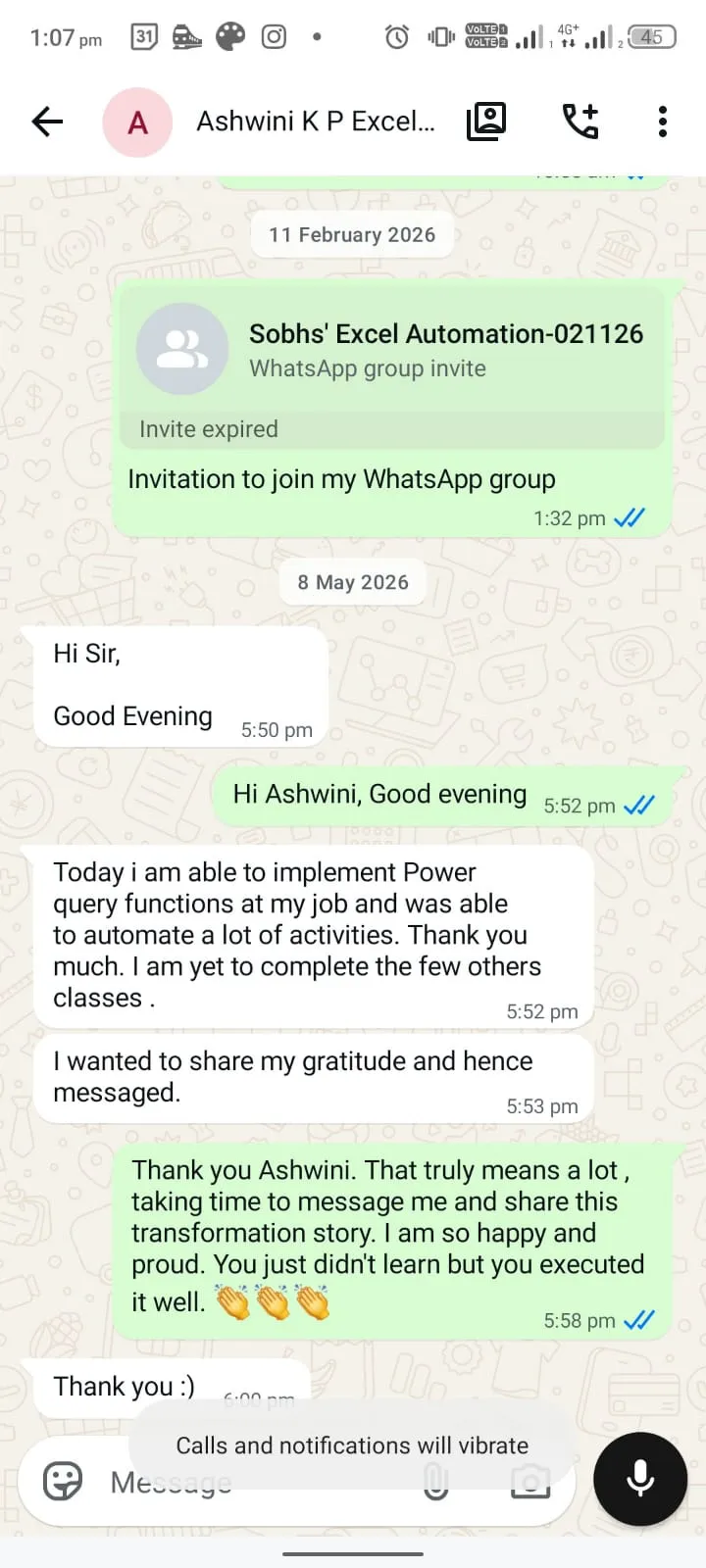
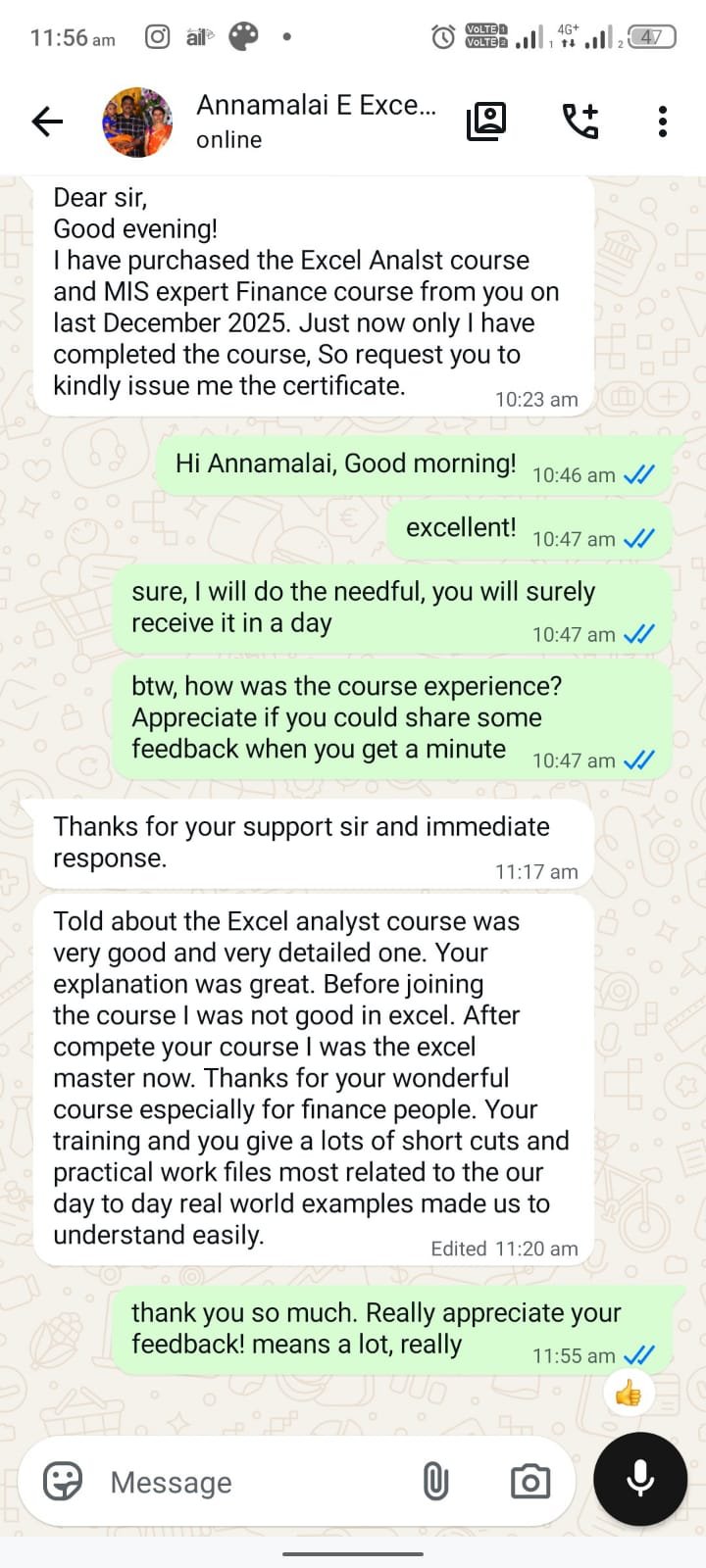
Real People. Real Results.

From fresh graduates to senior managers — what finance professionals say after AFAP.

★★★★★ 5.0 Rating · 1,500+ professionals trained
Thank you for the Excel Course
Sachin Pandirkar · Mumbai
Dear Sir,

I want to thank you for creating such a great course on Excel for Finance & Accounting Analysts. I have recently started it, and it is really helping me in my daily work.

The way you explain things in simple English makes it very easy to understand. Your step-by-step teaching style makes learning smooth and interesting.

Honestly, this course is completely worth the money. Thank you for offering such valuable content at a very reasonable price.
Best regards, Sachin Pandirkar · Mumbai
Feedback from Thrishna
WhatsApp
WhatsApp feedback from Mazhar
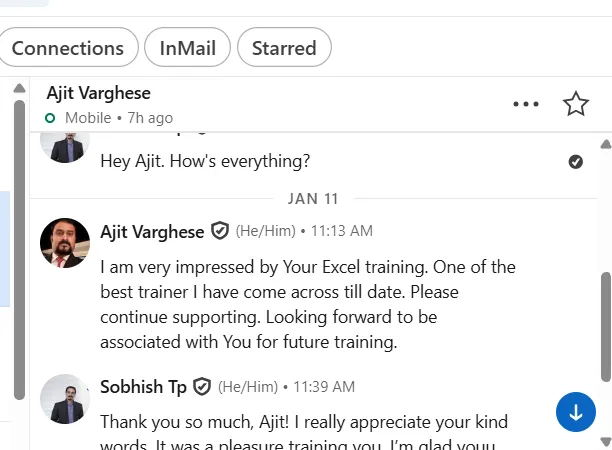
LinkedIn
LinkedIn feedback from Ajith Varghese
Before You Enrol

Common Questions, Honest Answers.

Everything you need to know before making your decision.

In 12 days, you learn how to automate your Excel reporting using Power Query, Data Modelling and DAX inside Excel. You also learn how to use Power BI for P&L deep dive, Budget vs Actual variance analysis, trend analysis and more.
The self-paced course starts from the very basics in Level 1 — complete beginners are welcome. No prior Excel knowledge required.

For the live batch (₹2,499): You need basic Excel skills — VLOOKUP, SUMIFs and similar. The live sessions move fast and assume these foundations. If you are a beginner, start with self-paced first and join the next live batch when ready.
If you go through the first few sessions and feel this is not worth every rupee — write to us within 7 days. We return it. No forms. No questions. No chase.

Refunds are processed securely via Razorpay within 5–7 business days.
Total content across all levels is 40+ hours. At 5–6 hours per week, most students complete all levels in 6–8 weeks. There is no deadline — you progress at your own pace and revisit any level as many times as you need.
Excel: Office 365 is recommended. Excel 2016 and later also works for most of the course.

Power BI: Power BI Desktop is free to download from Microsoft's website. No paid licence required.
If you work in FP&A, MIS, R2R, Accounts Payable, Accounts Receivable, Reporting or Cost Accounting — or any role with regular Excel work — this course applies directly to your day-to-day responsibilities. Equally suitable if you want to move into these roles.
Yes. If you enrol at ₹999 and want to join the live batch later, you pay only the difference — ₹1,500 — not the full ₹2,499. Write to us on WhatsApp and we will arrange it.
Immediately after payment you receive a confirmation. Within 5 minutes, your login credentials and WhatsApp group link are sent to your email and phone. You can start learning the same day.
Yes. Every live session is recorded and uploaded within 24 hours. You can watch at your convenience and submit questions for the next session. You will not miss anything.
Student question forum — submit any time through the student portal. Answered personally by Sobhish, mostly the same day.

Weekly connect sessions — open to all students for new topics and doubt clearing.
Yes — students enrolled at the current price get lifetime access. Future enrolments at higher prices will have a limited access period. Enrolling now secures lifetime access permanently.
No. We do not offer job placement. What we promise is real, verifiable skills and a portfolio of 10+ finance projects that strengthen your profile for FP&A and analyst roles in MNCs. Your outcome depends on how you apply what you learn.
The course is taught entirely in English.
💻
Windows & Android only.
Mac (Apple laptops) and iPhones are not currently supported. Please ensure you have access to a Windows PC or Android device before enrolling.
💬
Still have a question?   WhatsApp or call +91 62825 57744  ·  hellosobhs@gmail.com
Enrol Today — April 20th Batch
Self-Paced ₹999 → Live Batch ₹2,499 →